![Picup Media_Logo_on White_RGB.png]](https://support.picupmedia.com/hs-fs/hubfs/Picup%20Media_Logo_on%20White_RGB.png?height=40&name=Picup%20Media_Logo_on%20White_RGB.png)
What is GemStudio?
GemStudio is our brand-new feature that transforms your jewelry into hyper-realistic model shots, in one click.
Activating GemStudio Credits
You may activate your GemStudio credits through the email sent to you after purchase.
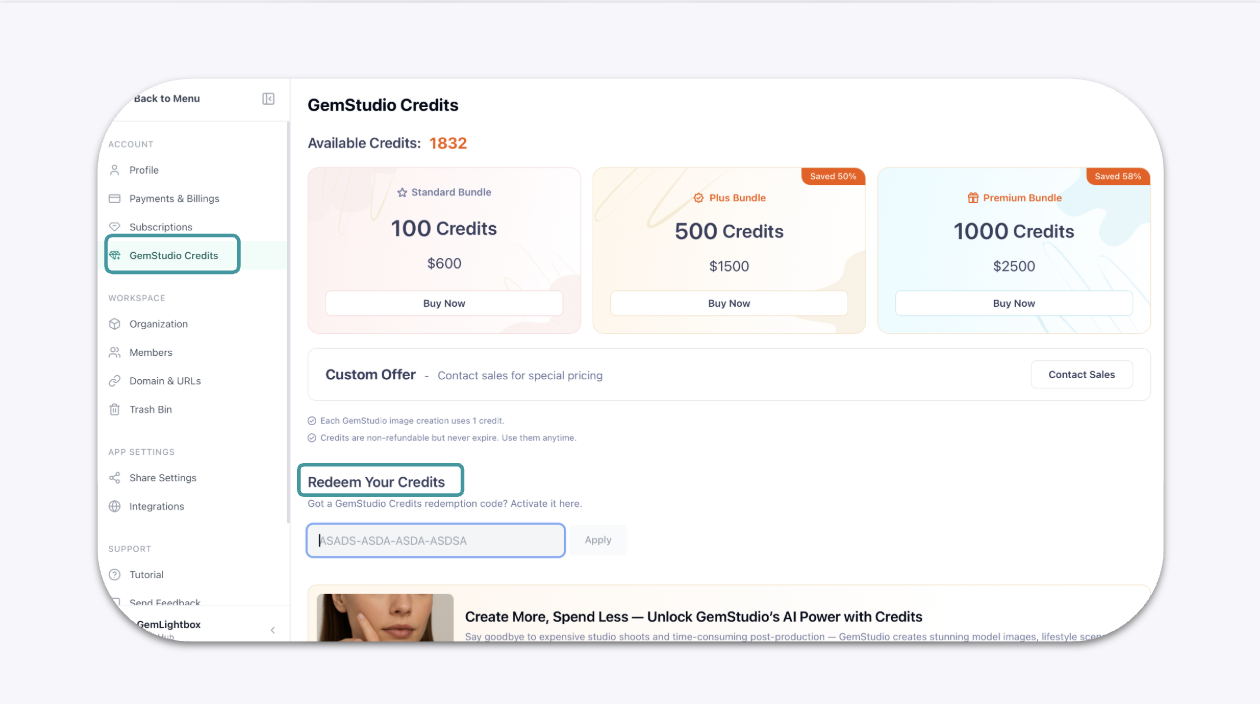
Upon receiving your GemStudio emailer, copy the activation code in the email and go to your GemHub account.
Locate the GemStudio credits page within your profile and paste the code in the Redeem Your Credits section.
Once the code is entered successfully, the GemStudio credits will then be updated.
Using GemStudio
The GemStudio can be found within the GemHub as a credits based feature.
You will be able to generate hyper-realistic images using this function.
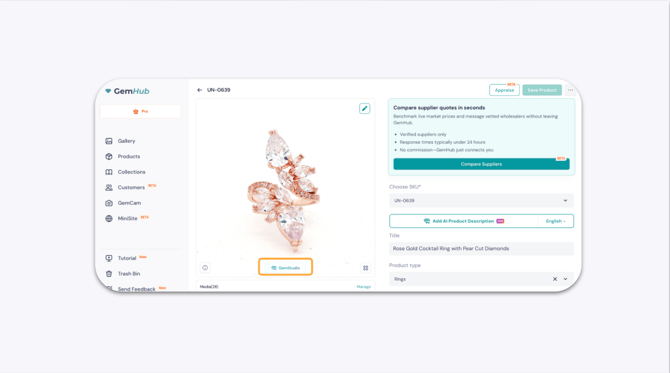
There are 3 options available for you within GemStudio. 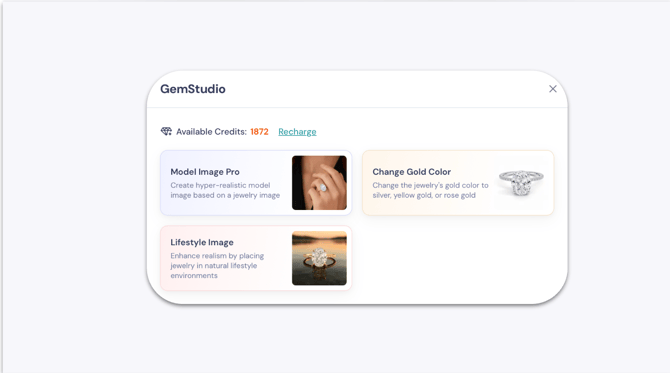
Model Image Pro
This function allows you to create hyper-realistic model images from your front-facing photos.
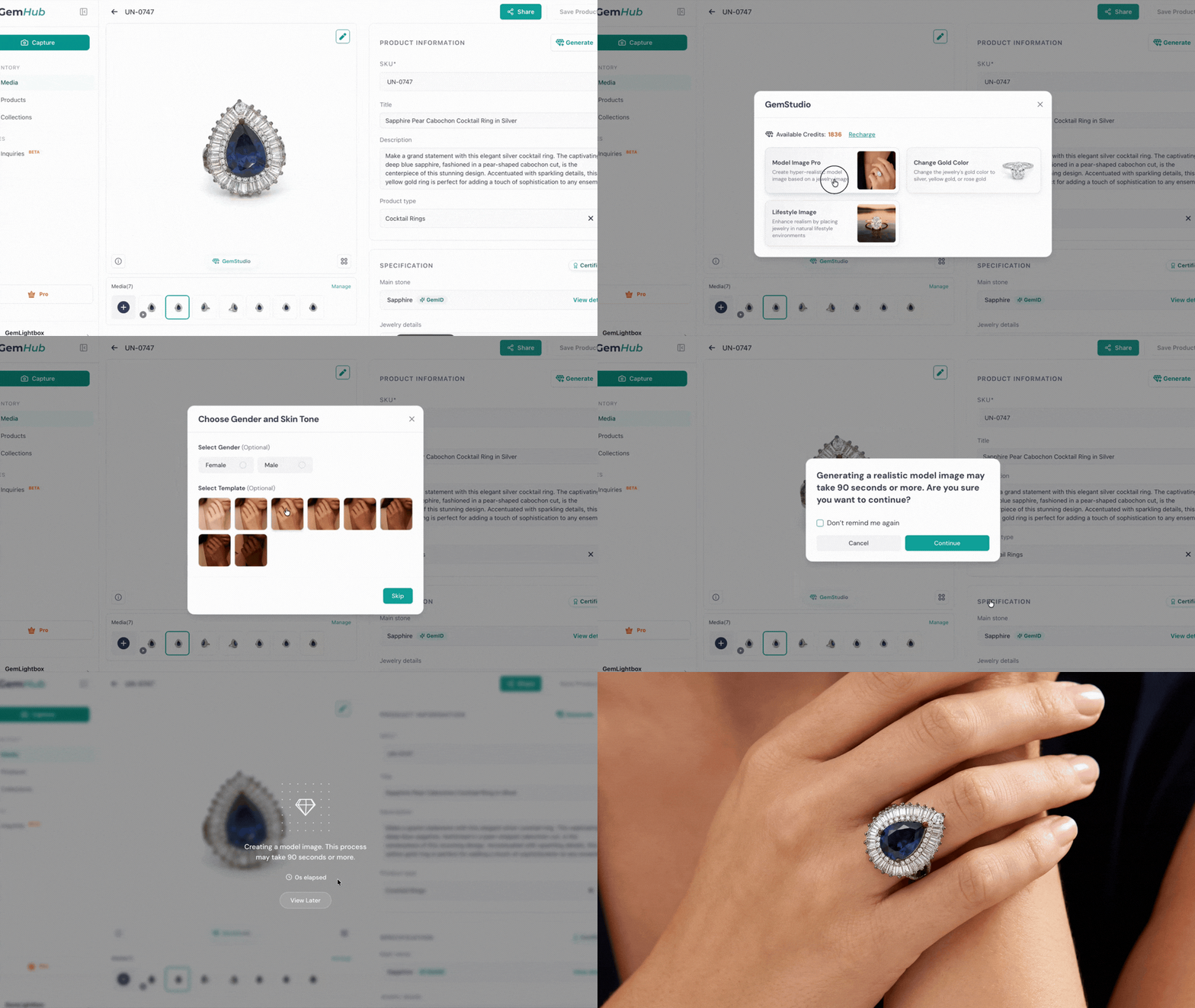
All you need to do is select is the style, gender and skin tone for your model, and GemStudio will take care of the rest for you.
Note: For certain jewelry types, such as pendants and earrings, you may be asked to provide the physical dimensions of the piece. This helps generate a model image with a more accurate scale of your jewelry.
Lifestyle Image
This function allows you to be able to place your items on a hyper - realistic background with a click of the button.
-4.gif?width=670&height=377&name=Untitled%20design%20(1)-4.gif)
All you need to do is to select the style of the background that you require and GemStudio will take care of the rest for you.
Note: For certain jewelry types, such as pendants and earrings, you may be asked to provide the physical dimensions of the piece. This helps generate a model image with a more accurate scale of your jewelry.
Gold Tone Change
This feature lets you easily change your jewelry’s gold color to silver, yellow gold, or rose gold, giving you flexibility to showcase each piece in different finishes with just a few clicks.
-2.gif?width=670&height=377&name=Untitled%20design%20(2)-2.gif)
There are 14 metal tone options available, and you can easily select your preferred finish by simply clicking on the one you want.
Need More Help?
If you have any questions regarding the GemStudio or images generated, please contact our support team at support@picupmedia.com.