![Picup Media_Logo_on White_RGB.png]](https://support.picupmedia.com/hs-fs/hubfs/Picup%20Media_Logo_on%20White_RGB.png?height=40&name=Picup%20Media_Logo_on%20White_RGB.png)
If you're having trouble syncing media from your GemHub mobile app to your desktop, follow these steps to troubleshoot and ensure a smooth sync process.
Before You Begin
Sign out of the GemHub application on mobile and desktop. This prevents any session conflicts that may interfere with syncing.
Step-by-Step Guide to Syncing Media
Open an Incognito Window on Your Desktop
-
Launch your web browser.
-
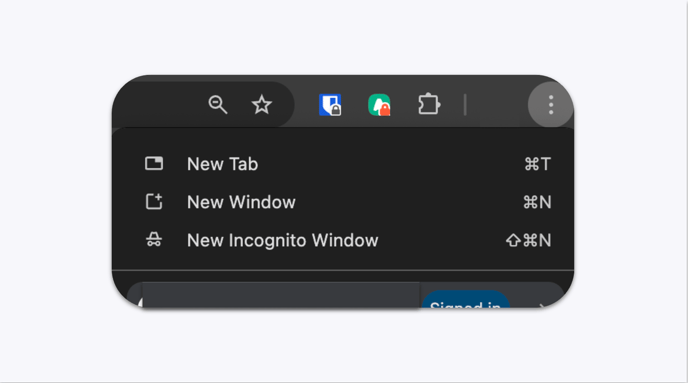
Click the three-dot menu (top-right corner).
-
Select New Incognito Window.
Link Your Device
-
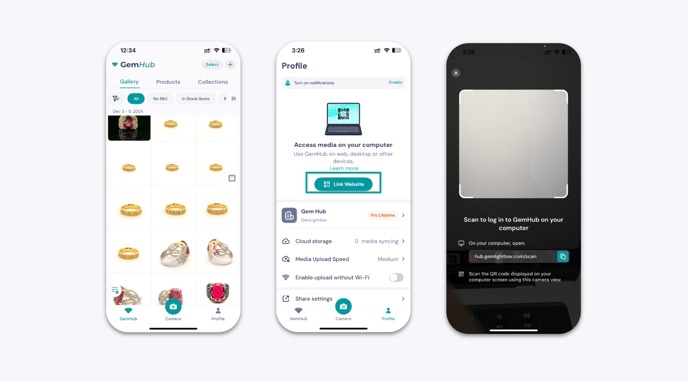
Open the GemHub app on your mobile.
-
Tap on Profile (bottom right).
-
Tap on Link Device.
-
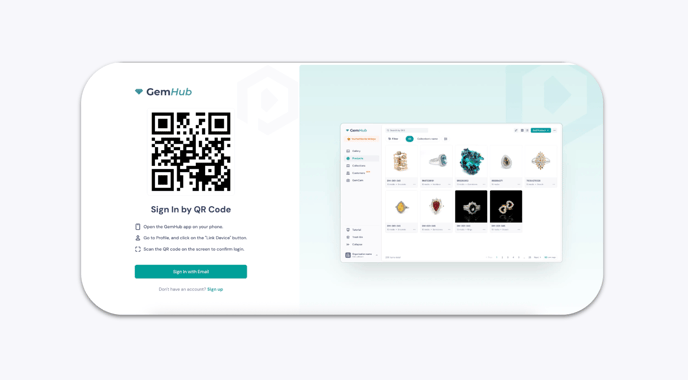
Scan the QR code shown on your desktop.
Confirm Sync
-
After scanning, check that your desktop logs in and media appears correctly.
-
If the media appears in incognito but not in a regular browser window:
-
It is likely a cache or cookie issue.
-
Clear cache and cookies, then try logging in again.
-
Additional Tip: Media Not Syncing After Emptying Trash Bin?
If media still doesn’t sync:
-
Go to Profile in the GemHub app.
-
Ensure Enable Upload without Wi-Fi is switched on.
-
Switch from Wi-Fi to mobile data on your device.
-
Sign out and sign back in to refresh the connection.
Key Notes
-
Devices do not need to be on the same Wi-Fi network to sync.