![Picup Media_Logo_on White_RGB.png]](https://support.picupmedia.com/hs-fs/hubfs/Picup%20Media_Logo_on%20White_RGB.png?height=40&name=Picup%20Media_Logo_on%20White_RGB.png)
Managing Product Attributes in GemHub
GemHub allows users to create and manage custom product attributes to better organize and describe their jewelry items. These attributes can be text, numerical, or dropdown in nature.
Creating Custom Attributes
-
Log in to your GemHub account.
-
Go to the Product section.
-
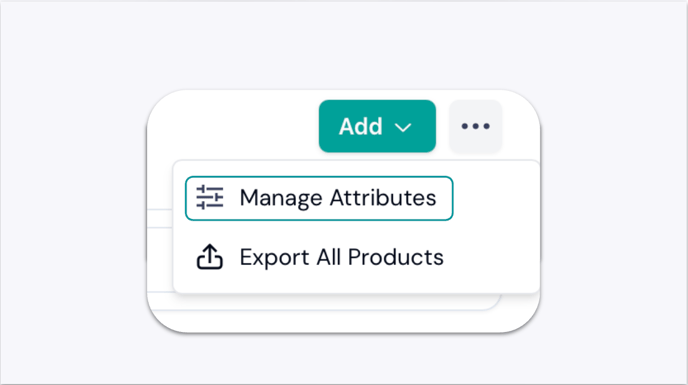
Click the elipsis button (...) next to the Add button and select Manage Attributes.
-
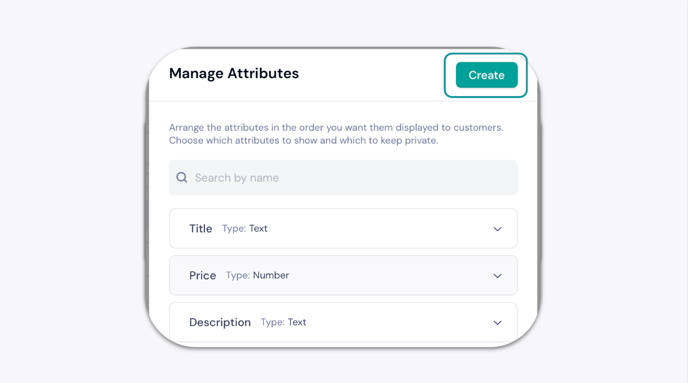
From the side panel, click Create.
-
Enter the attribute name and select its type:
-
Text
-
Numerical
-
Dropdown
-

Choose if the attribute should bemandatory or optional, then click Create to confirm.
📌 Note: Mandatory attributes must be filled in for every product after the attribute is created.
Once created, the new custom attributes will appear in the product list on the Products page.
Managing Existing Attributes
-
Log in and go to the Product section.
-
Click the dropdown next to Create Product and select Manage Attributes.
-
From the Manage Attribute side panel:
-
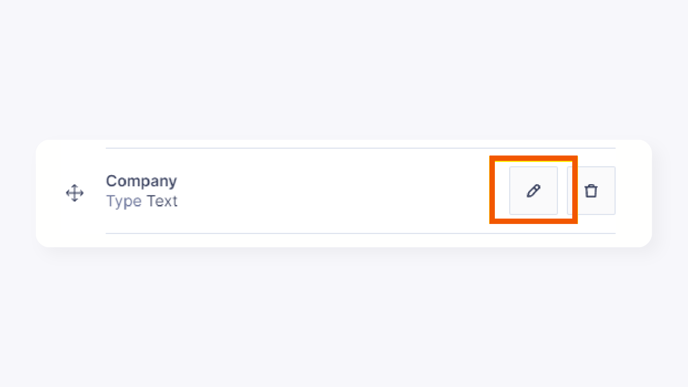
Click the pencil icon to edit the attribute.
-
Click the trash bin icon to delete the attribute.
-
-
If editing, modify the attribute type or settings and click Confirm.
Generating AI Descriptions for Products
GemHub enables you to quickly generate product descriptions using AI, making it easy to describe your jewelry professionally and consistently.
Supported Product Types
You can generate AI descriptions for the following categories:
-
Rings
-
Watches
-
Earrings
-
Necklaces
-
Gemstones
-
Bracelets
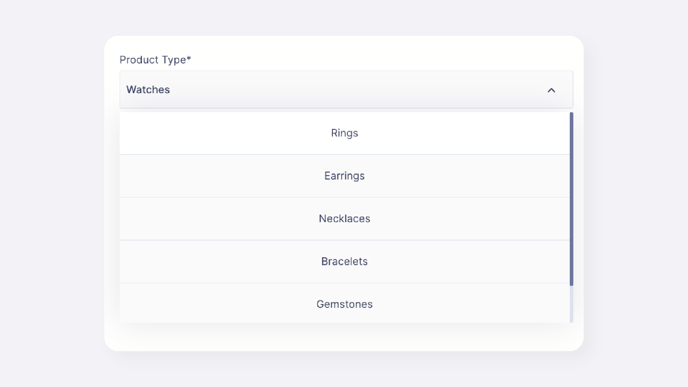
Steps to Generate AI Descriptions
In the Products sections, click on a product to open the product information page. 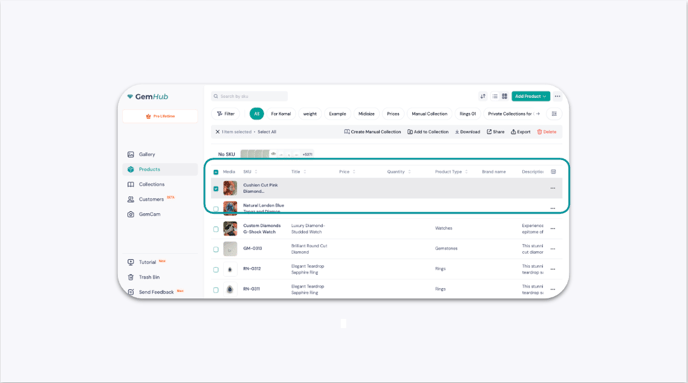
Click on Add AI Product Description to start generating product descriptions.
You can also select your preferred language to have the product description generated in that specific language.
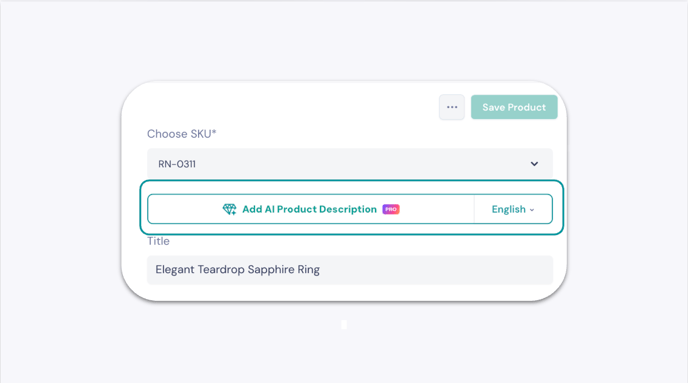
To restart, delete the newly created AI product description and click on the Add AI Product Description button again to generate a new set of descriptions.