![Picup Media_Logo_on White_RGB.png]](https://support.picupmedia.com/hs-fs/hubfs/Picup%20Media_Logo_on%20White_RGB.png?height=40&name=Picup%20Media_Logo_on%20White_RGB.png)
If you're having trouble connecting your GemCam to your computer, there may be several causes. Please follow the steps below to resolve the issue.
USB Connectivity
-
Ensure that the USB-C cable is securely connected to both your computer and the GemCam.
-
If possible, disconnect and reconnect the cable to confirm a firm connection.
USB Port Connection
-
Check that the USB-C port on your computer is functioning properly.
-
Try connecting the GemCam to a different USB-C port, if available.
Power Button
-
Confirm that the power button on the GemCam is turned on.
-
A green light at the back of the GemCam indicates that the device is powered and connected.
Use the Supplied USB-C Cable
-
Use only the USB-C cable provided with the GemCam.
-
Third-party or non-certified cables may not support proper connectivity and can result in connection failure.
Restart Your Computer
-
Restarting your computer can often resolve temporary connectivity issues.
-
After restarting, reconnect the GemCam and check for recognition.
Device-Specific Instructions
For MacBook Users:
-
Ensure you are using the latest version of the GemLightbox app. Search for "GemLightbox" in the Apple App Store.
-
Enable automatic app updates:
-
Open the App Store on your Mac.
-
Go to App Store > Settings.
-
Select "Automatic Updates".
-
-
If the GemCam still does not connect:
-
Restart the GemLightbox app and try reconnecting the device.
-
For Window Users:
- We recommend using the Google Chrome browser. Make sure it's updated to the latest version.
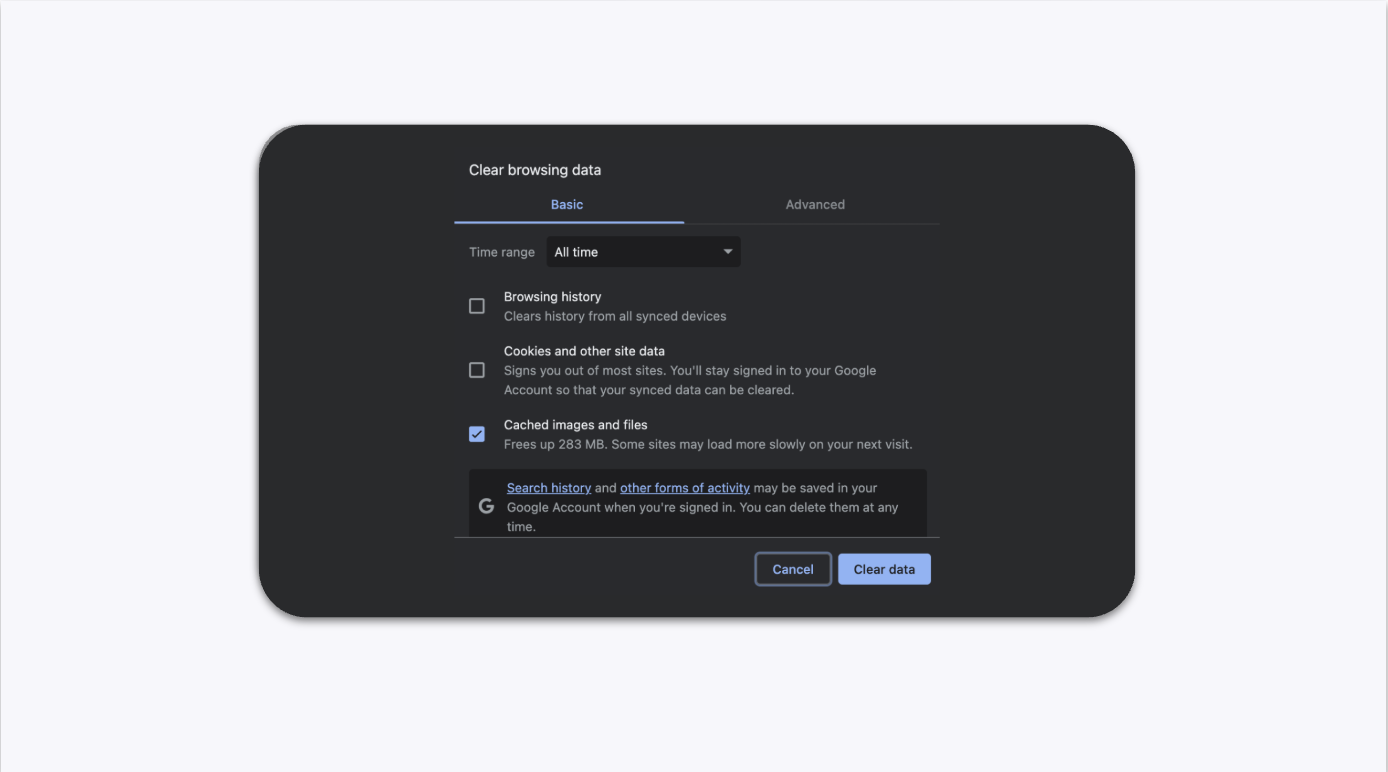
- Refresh your browser and clear its cache.
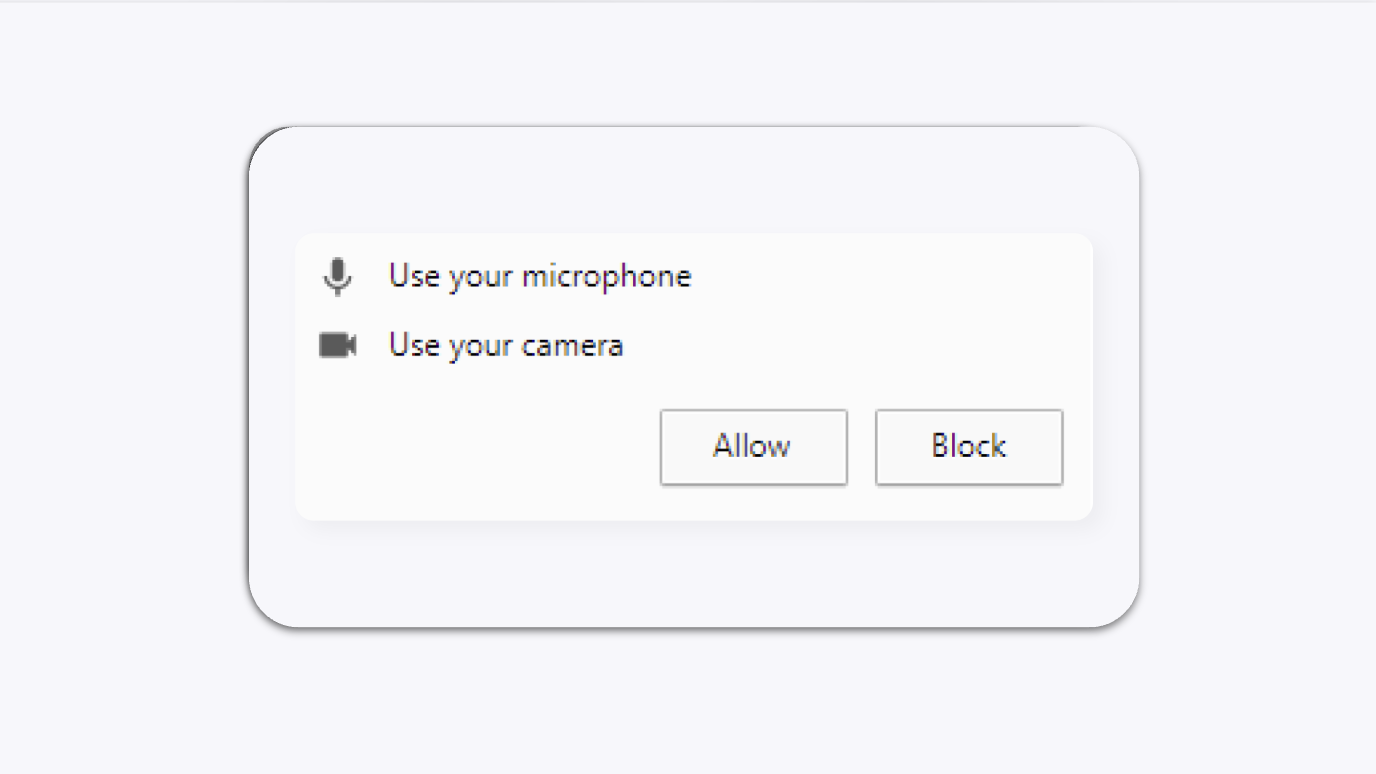
- Ensure the camera is activated in your browser settings, as this is necessary for using the GemCam.