![Picup Media_Logo_on White_RGB.png]](https://support.picupmedia.com/hs-fs/hubfs/Picup%20Media_Logo_on%20White_RGB.png?height=40&name=Picup%20Media_Logo_on%20White_RGB.png)
Quick Answer
If your images and videos are stuck with a "pending" status or are not appearing in your cloud storage, it's usually due to an interrupted internet connection, full cloud storage, or a paused sync. Following the diagnostic steps below will help you identify and fix the issue.
Before You Start
Ensure that GemIQ is installed on your mobile device.
Have access to a stable internet connection (Wi-Fi is recommended for large uploads).
Be logged into your GemIQ account.
Steps
Follow these steps in order to diagnose and resolve the syncing problem.
Check if Syncing is Paused
Sometimes the app's sync process may be paused. Look for a notification within the GemIQ that says "Sync Paused."
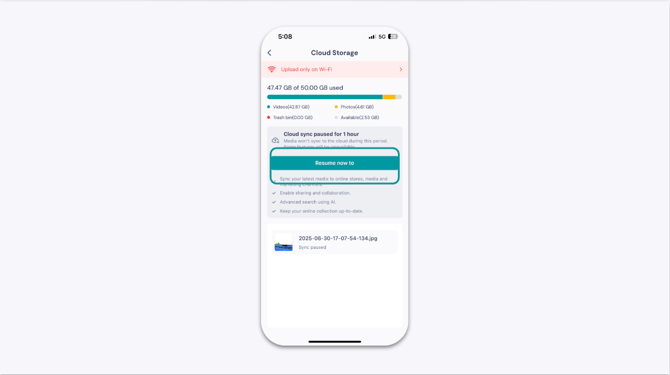
If you see this message, tap the Resume button to restart the sync. Also, ensure your device is not in airplane mode and has an active network connection.
Check Your Internet Connection
A stable internet connection is required for your files to sync to the cloud.
Wi-Fi: For the fastest and most reliable uploads, connect your device to a strong Wi-Fi network.
Mobile Data: If you are using mobile data, your connection may be slow or unstable, which can interrupt uploads.
Check Your Cloud Storage Limit
If your GemIQ cloud storage is full, new uploads will fail. You will need to check your current plan's storage limit and upgrade if necessary.
To continue syncing, you may need to upgrade your GemIQ subscription plan from your account dashboard.
Check Mobile Data Upload Settings
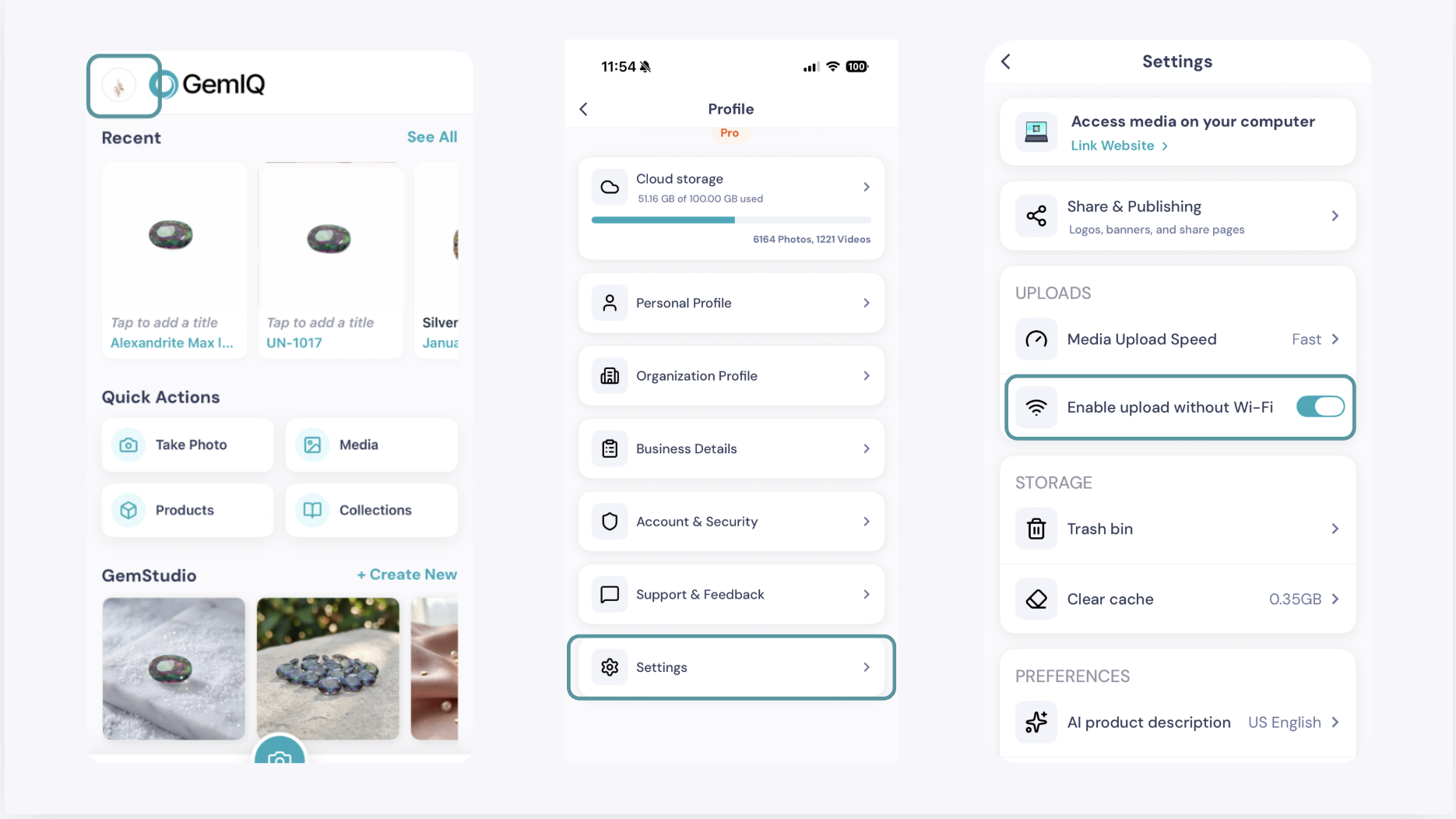
If you are not connected to Wi-Fi and need to sync over your mobile network, you must enable this setting in the app.
Open GemIQ and navigate to your Profile on the top left of the screen.
Go to Settings and toggle to Enable upload without WiFi.
Keep the App Open During Large Syncs
If you are uploading a large number of files, especially during your first sync, avoid closing the GemHub or locking your device. This can interrupt the sync process. It is best to leave your device unlocked and the app open overnight to complete the initial sync.
Expected Result
After following these steps, the "pending" status on your files should disappear, and your images and videos will be fully uploaded and accessible from your GemIQ account on any device.
If This Does Not Work
If your files still fail to sync, try restarting your mobile device completely. If the problem persists after a restart, please contact our support team for further assistance.
Common Mistakes
-
Closing the app: Exiting GemIQ while a sync is in progress can cause uploads to fail.
-
Using unstable networks: Attempting to upload large video files over a weak Wi-Fi or mobile data connection.
-
Ignoring storage limits: Not realizing your cloud storage plan is full, which prevents any new files from being uploaded.