![Picup Media_Logo_on White_RGB.png]](https://support.picupmedia.com/hs-fs/hubfs/Picup%20Media_Logo_on%20White_RGB.png?height=40&name=Picup%20Media_Logo_on%20White_RGB.png)
Quick Answer
You can apply AI edits, such as background removal and retouching, to multiple images at once in the GemHub. This feature, available on paid plans, allows you to select up to 50 images from your gallery and process them in a single batch.
Before You Start
-
You must have a paid GemIQ account subscription.
-
The GemHub must be installed on your device.
-
You need images already uploaded to your GemHub Gallery.
Steps
Open the GemHub and navigate to Media.
Use Media Type filter and select Images. This will hide videos and make it easier to select your photos.
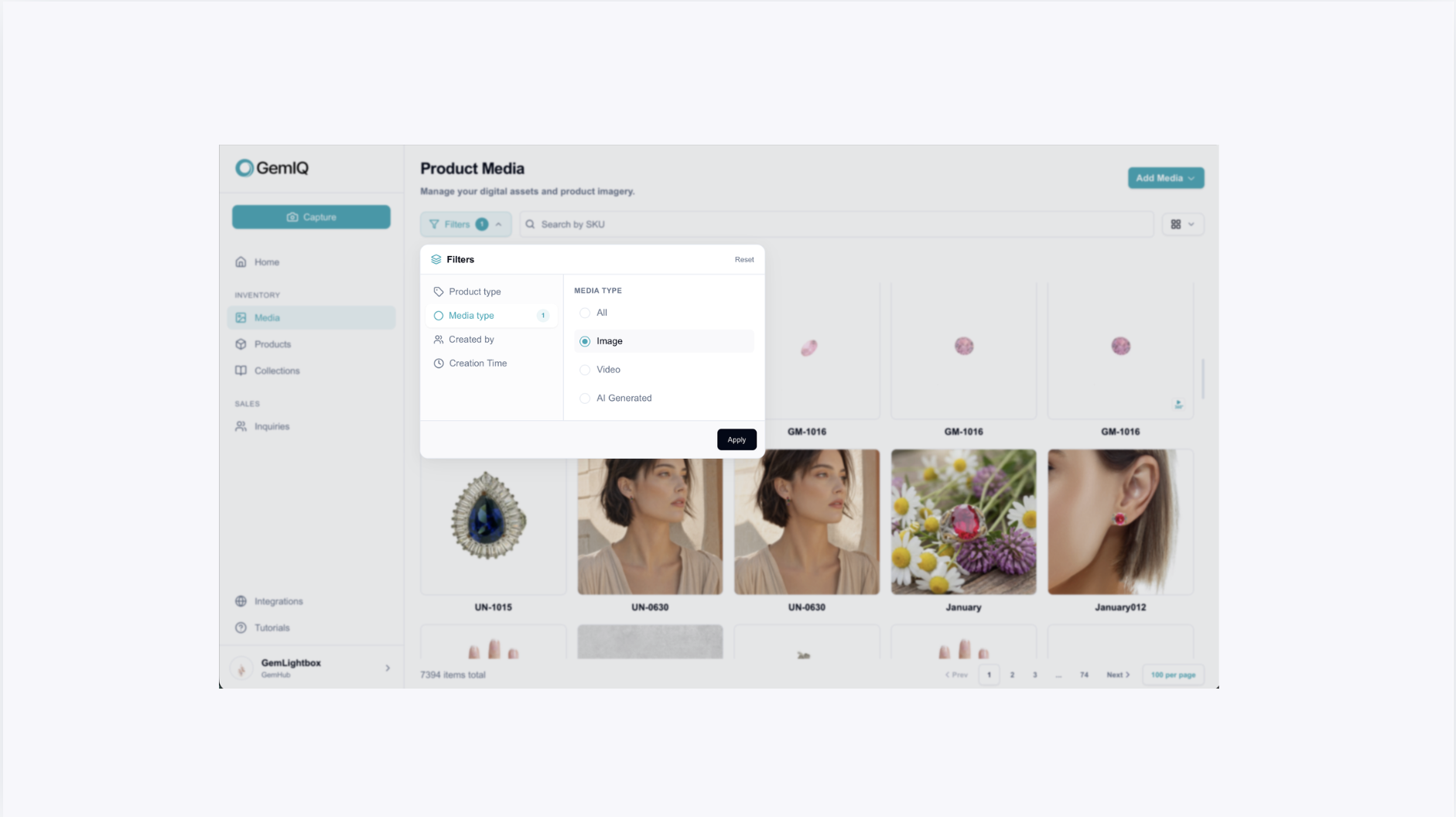
From there, you can select multiple images and apply bulk edit to them .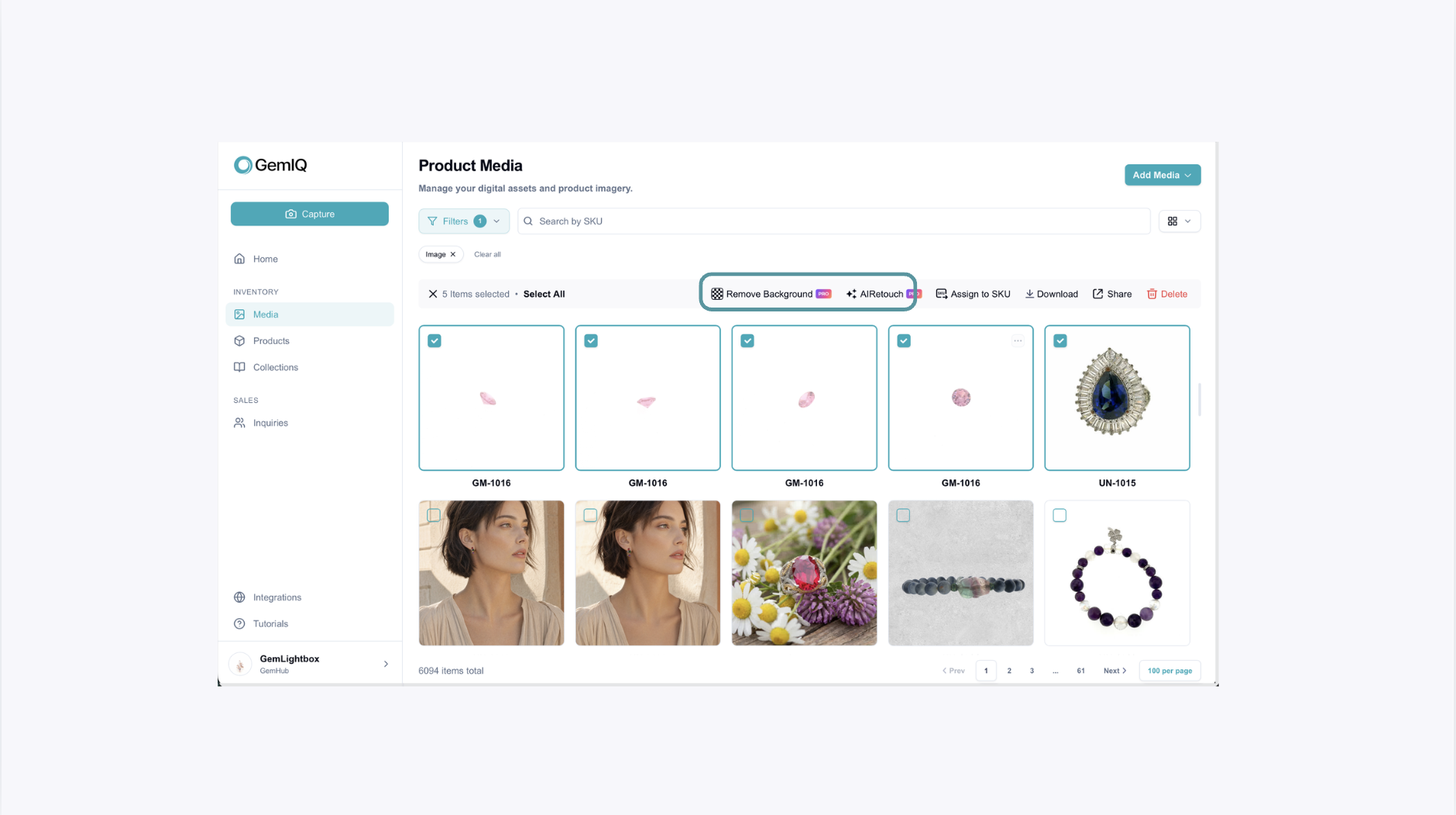
Note: Bulk editing may take some time to complete.
You can track the progress through the pop-up window that appears during the editing process.
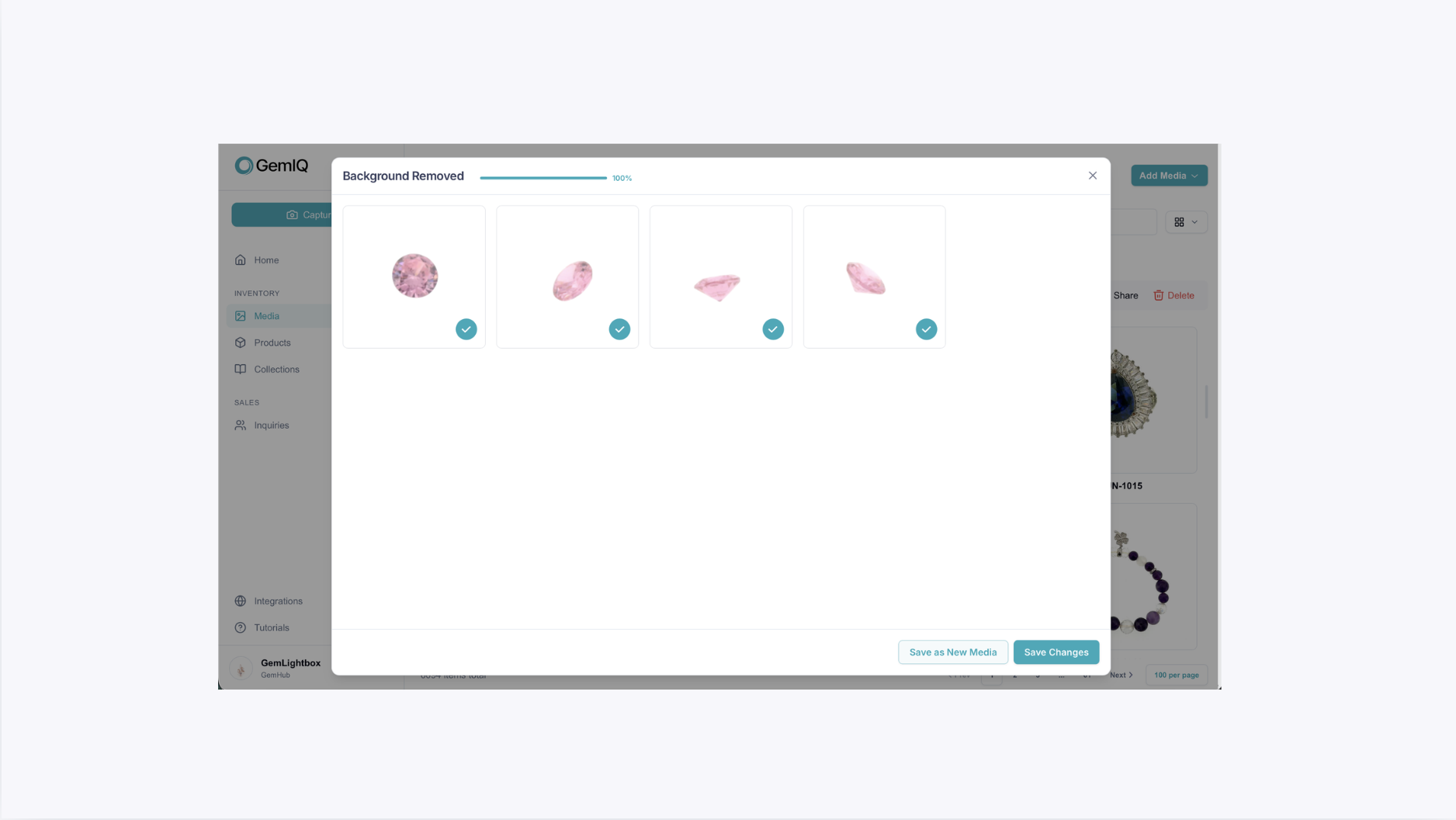
Once the edits are completed, you will be able to then proceed to save the media.